.png)


Your pod was running, but now it shows CrashLoopBackOff. What happened?
CrashLoopBackOff means a container starts, exits, and the kubelet keeps trying to restart it. With each failure, the kubelet waits longer before trying again.
CrashLoopBackOff is a status, not the actual error. It tells you that the container keeps exiting, but it does not tell you why. To find the actual cause, check the container's previous logs, the pod's events, or the lastState.terminated field.
This guide covers the most common causes, how to identify each one, and how to fix it.
Before doing anything else, you should run:
kubectl get podsYou will see:
NAME                      READY   STATUS             RESTARTS        AGE
my-app-7d6979fb54-pv6pd   0/1     CrashLoopBackOff   8 (2m20s ago)   6m
The RESTARTS column shows how many times the container has restarted. A pod with 2 restarts is very different from one with 47, so check this number first. The time in brackets shows when the last restart happened and gives you a rough idea of the current backoff state.
READY shows how many containers are ready out of the total number of containers. For example, 0/1 means the pod has one container, but it is not ready. If the pod has two containers, you might see 1/2, which tells you that one container is ready and the other is not.
If you want to watch the restart count live instead of running the command repeatedly, our K9s guide shows you how.
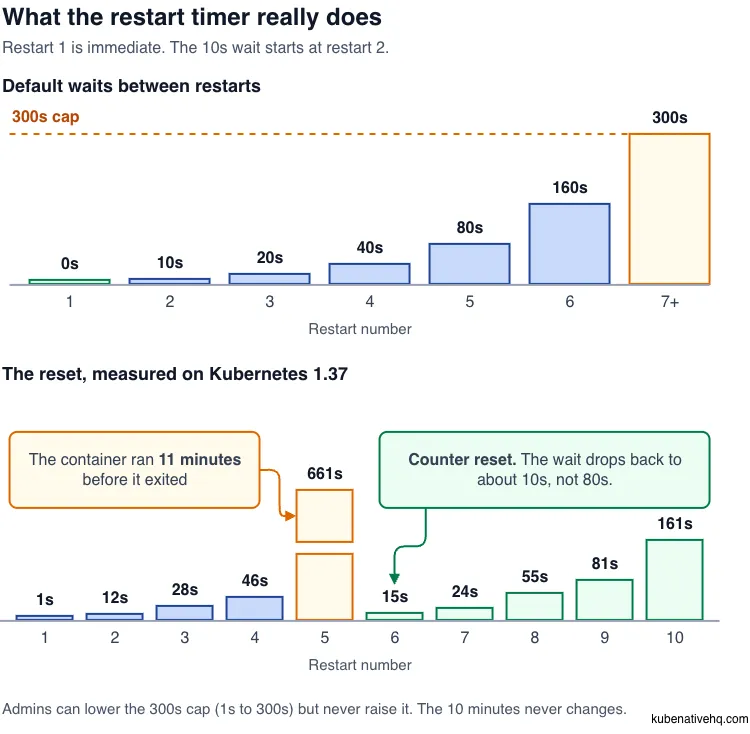
When a container exits, the kubelet does not always restart it immediately. It waits before trying again. After each failure, the wait gets longer. This is called exponential backoff. Simply, the wait time doubles after each failure.
With the default settings, the waits look like this:
10s → 20s → 40s → 80s → 160s → 300s (capped)
The wait stops growing at 300 seconds, which is 5 minutes. The kubelet never waits longer than that between attempts.
There is one important thing to note: when you watch the restart times. The first restart happens almost immediately. After that, the kubelet waits 10 seconds before the second restart, 20 seconds before the third, and so on. This is why a broken pod may show Error or Completed briefly before changing to CrashLoopBackOff.
These waits are built into the kubelet. You do not set them in your pod spec, and there is no field for them.
Why wait at all? Because a container that crashes every second would put extra load on the node. Every attempt uses resources, writes logs, and may pull an image. Waiting longer between attempts prevents one broken pod from putting unnecessary load on the rest of the machine.
Here is what it looks like measured on a Kubernetes 1.37 cluster, running a container that exits immediately every time:
RESTART  DETECTED(UTC)  GAP     NOMINAL
2        11:05:20       14s     10s
3        11:05:50       30s     20s
4        11:06:31       41s     40s
5        11:08:02       91s     80s
6        11:10:42       160s    160s
7        11:15:50       308s    300s (cap)
8        11:20:53       303s    300s (cap)
The gaps are usually a few seconds longer than the expected time. That is normal. The kubelet checks again after the timer expires, so do not expect the restart to happen at the exact second.
If the container stays running for 10 minutes, the restart counter resets. If it crashes after that, the kubelet starts the sequence again instead of continuing toward the 5-minute wait.
The important thing about this 10-minute window is that it is separate from the 5-minute cap. Lowering the cap does not lower the reset time. If your cluster admin lowers the cap to 60 seconds, you get faster retries, but the reset still happens after 10 minutes. Faster retries, same reset. This fixed 10-minute value comes from KEP-4603, which split it out from the cap.
The 10 minutes is based on how long the container stays running, not the time between crashes. What matters is how long the container runs before it exits.
Here is the reset measured on Kubernetes 1.37. The container crashed four times, stayed up for 11 minutes, and then crashed again:
RESTART  AT(UTC)     GAP     NOTE
1        11:58:30    1s      first restart, no backoff yet
2        11:58:42    12s     backoff building: ~10s
3        11:59:10    28s     ~20s
4        11:59:56    46s     ~40s
5        12:10:57    661s    the container stayed up 11 minutes
6        12:11:12    15s     back to ~10s, not ~80s
7        12:11:36    24s     ~20s
8        12:12:31    55s     ~40s
9        12:13:52    81s     ~80s
10       12:16:33    161s    ~160s
Look at restart 6. The sequence does not continue from 80 seconds. It starts over at 10 seconds and builds up again.
This has an important consequence. A slow memory leak that takes 8 minutes to fill up never reaches 10 minutes of uptime. The counter never resets, so the pod can eventually reach the 5-minute cap and stay there. That is why some crash loops feel much slower than others, even when the container keeps failing for the same reason.
Check these against your own cluster instead of trusting the version numbers here. Both have moved recently. They are feature gates, which are on-off switches a cluster admin controls.
KubeletCrashLoopBackOffMax arrived in Kubernetes 1.32 and has been beta and on by default since 1.35. On a current cluster, it is a kubelet setting called maxContainerRestartPeriod that an admin can set for each node:
apiVersion: kubelet.config.k8s.io/v1beta1
kind: KubeletConfiguration
crashLoopBackOff:
    maxContainerRestartPeriod: "100s"
That setting has a fixed range. The lowest value is 1 second and the highest is 300 seconds. Since 300 seconds is already the default, this setting can only lower the cap from the default. It cannot raise it above 300 seconds. If you want slower retries to protect a fragile downstream service, this setting cannot do that. The kubelet checks this value when it starts. If the value is outside 1s to 300s, the kubelet shows an error and does not start. Try a new value on one node first.
There is one detail that is easy to miss. If you set the cap below the normal 10-second first wait, the first wait is reduced too. Set maxContainerRestartPeriod: 5s, and you do not get a 10-second wait capped at 5 seconds. You get a 5-second wait from the start.
ReduceDefaultCrashLoopBackOffDecay has been available since 1.33 and is still off by default (it is still alpha in 1.37), so an admin has to turn it on. When enabled, it changes both the first wait and the maximum wait. The first wait drops from 10 seconds to 1 second, and the cap drops from 300 seconds to 60 seconds. The sequence becomes 1s, 2s, 4s, 8s, 16s, 32s, then stays at 60s.
One thing to remember: the per-node setting wins over the gate. If you turn on ReduceDefaultCrashLoopBackOffDecay and do not set maxContainerRestartPeriod, the cap is 60 seconds. If an admin sets maxContainerRestartPeriod on a node, that value is used instead, even if it is higher than 60 seconds. It still cannot go above 300 seconds.
apiVersion: kubelet.config.k8s.io/v1beta1
kind: KubeletConfiguration
featureGates:
  ReduceDefaultCrashLoopBackOffDecay: true
If your restart delays do not match the 10-20-40-80-160-300 pattern, do not assume you are reading the clock wrong. Check what the node is configured to do:
kubectl get --raw "/api/v1/nodes/<node-name>/proxy/configz" \ | grep -o '"crashLoopBackOff":{[^}]*}'"crashLoopBackOff":{"maxContainerRestartPeriod":"5m0s"}
Use grep -o rather than plain grep. The endpoint returns the whole kubelet configuration as one large line of JSON, so plain grep can print the entire line and dump thousands of characters into your terminal.
Yes. CrashLoopBackOff can occur with only two of the three restartPolicy settings.
This table describes the policy a container actually follows. A container can set its own restartPolicy (see the per-container section below), so check the container's policy too, not only the Pod's.
With Never, the container stops once and stays stopped. There is no restart loop, so there is nothing for the kubelet to back off from. That is why you almost never see CrashLoopBackOff on a bare pod set to Never:
NAME        READY   STATUS   RESTARTS   AGE
never-pod   0/1     Error    0          25s
That is a Never pod after its container exited with code 1. The status is Error, and RESTARTS is still 0.
Most workloads cannot use Never. A Deployment or StatefulSet requires Always in its pod template. The API rejects other settings, so crash loops are more common in Deployments than in manually created pods.
To check what your pod is set to:
kubectl get pod my-app-7d6979fb54-pv6pd -o jsonpath='{.spec.restartPolicy}'
For regular containers, a container-level restart policy arrived in Kubernetes 1.34 and has been beta and on by default since 1.35. This lets a single container have its own restartPolicy. For example, a container inside a Deployment can be set to Never even though the pod says Always. We will discuss more in the next section.
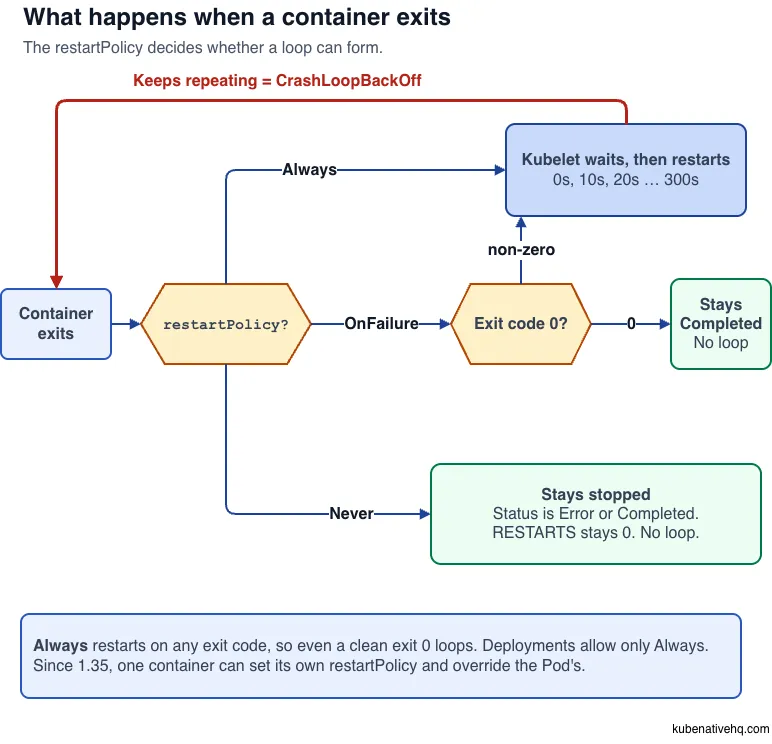
restartPolicy used to apply only to the whole Pod. The one exception was an init container, which could set restartPolicy: Always to become a sidecar. The ContainerRestartRules feature lets any container have its own restartPolicy. It arrived in 1.34 and has been beta and on by default since 1.35. The container's setting overrides the Pod's setting:
spec:
  restartPolicy: Always

  containers:
    - name: my-app
      image: my-app:2.1.0
    - name: run-once
      image: my-image:1.0.0
      restartPolicy: Never   # overrides the pod's Always
A container can also restart only for specific exit codes, using restartPolicyRules:
spec:
  restartPolicy: Never
  containers:
    - name: training-worker
      image: my-trainer:1.0.0
      restartPolicy: Never   # must be set when you use rules (any value works)
      restartPolicyRules:    # restart only when the exit code is 42
        - action: Restart
          exitCodes:
            operator: In
            values: [42]
Rules are checked in order, and the first match wins. If nothing matches, the container falls back to its own restartPolicy.
Two things to know before you use this.
There are two actions. Restart restarts only the container that exited. RestartAllContainers restarts every container in the Pod in place. It keeps the Pod's sandbox, IP and volumes, re-runs init containers, and skips preStop hooks and the graceful termination period.
RestartAllContainers is controlled by the RestartAllContainersOnContainerExits feature gate. It arrived in 1.35 as alpha, where you had to turn the gate on yourself. It has been beta and on by default since 1.36, so clusters on 1.36 or later support both actions as long as the ContainerRestartRules and NodeDeclaredFeatures gates are also on, because this gate depends on both. To restart a container only for certain exit codes, set its restartPolicy to Never and add a Restart rule for each code you want retried.
And if ContainerRestartRules is off on your cluster, the API does not reject the container-level fields. The API quietly removes them. Your kubectl apply can succeed, but the cluster does not store the settings. The container then follows the restart policy of the Pod. If only RestartAllContainersOnContainerExits is off, the API rejects a RestartAllContainers rule with an unsupported value error.
Confirm the stored configuration with:
kubectl get pod <pod-name> -o yamlDo not rely only on a successful kubectl apply. Also check that your kubelets are not older than your API server. An older kubelet ignores a RestartAllContainers rule, and the Pod YAML will still show it.
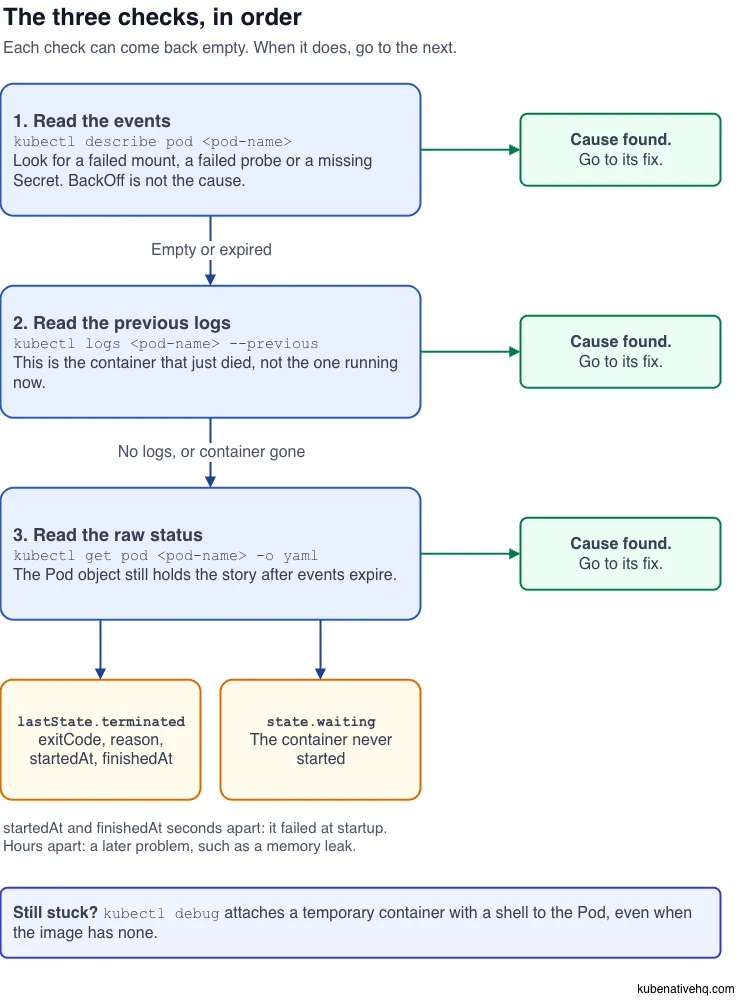
You do not have to guess. Check three things, in this order. Each step gives you useful information that may not be available in the next step.
kubectl describe pod my-app-7d6979fb54-pv6pd
Scroll to the bottom:
Events:

  Type     Reason     Age                 From               Message
  ----     ------     ----                ----               -------
  Normal   Scheduled  3m4s                default-scheduler  Successfully assigned my-namespace/my-app-7d6979fb54-pv6pd to node-1
  Warning  BackOff    2s (x5 over 2m57s)  kubelet            Back-off restarting failed container my-app in pod my-app-7d6979fb54-pv6pd_my-namespace(2d9fb5ee-7248-4323-a570-014c085cb8c9)
  Normal   Pulled     0s (x6 over 3m3s)   kubelet            Container image "my-app:2.1.0" already present on machine and can be accessed by the pod
  Normal   Created    0s (x6 over 3m3s)   kubelet            Container created
  Normal   Started    0s (x6 over 3m3s)   kubelet            Container started
The BackOff warning only tells you that the container keeps failing and the kubelet is waiting before restarting it. It is not the cause. Look at the other events for the actual problem, such as a failed mount, failed probe, or missing Secret.
For a cleaner list, use:
kubectl events --for pod/my-app-7d6979fb54-pv6pd
One thing to remember: Events expire after an hour by default. If you check the Pod the next morning and the events are gone, it does not mean the problem is fixed. The events have simply expired. Move to Step 3.
kubectl logs my-app-7d6979fb54-pv6pd --previous
Why --previous? Because the container running right now may be two seconds old and have written nothing yet. --previous shows you the logs from the instance that just died, which is usually where the real error is:
starting my-app
FATAL: cannot connect to database
For a pod with more than one container, name the one you want:
kubectl logs my-app-7d6979fb54-pv6pd -c my-app --previous
You have to remember: if the container dies very quickly and restarts many times, the old container may already have been removed.
You may see:
unable to retrieve container logs for containerd://...
If that happens, move to Step 3 instead of assuming the container had no logs.
If the events have expired and the logs are gone, the Pod object may still contain useful information.
kubectl get pod my-app-7d6979fb54-pv6pd -o yaml
Look under status.containerStatuses[].lastState:
lastState:
  terminated:
    containerID: containerd://af4b6b846d918f4764fb0c9d43bea2fe681828ec2ffd0baeab00d64f968cb261
    exitCode: 1
    finishedAt: "2026-09-10T11:23:54Z"
    reason: Error
    startedAt: "2026-09-10T11:23:52Z"
lastState.terminated keeps information about the last container that stopped. If something broke overnight, this can be a good starting point.
The two timestamps are useful. If startedAt and finishedAt are only seconds apart, the container probably failed during startup. Check its configuration, dependencies, or file permissions.
If it ran for hours before stopping, look for problems that happen later, such as a memory leak or a dependency that failed.
Still stuck? kubectl debug can attach a temporary container with a shell to the failing Pod. This is useful even when the original image does not have a shell.
Before you troubleshoot anything, check which container is crashing.
Init containers run before your main container. They must finish successfully before the main container can start. kubectl describe pod lists them separately, and the status shows Init:CrashLoopBackOff instead of the usual CrashLoopBackOff:
NAME         READY   STATUS                  RESTARTS        AGE
init-crash   0/1     Init:CrashLoopBackOff   5 (2m20s ago)   5m28s
The same three steps apply. Just name the init container:
kubectl logs init-crash -c wait-for-db --previous
Sidecars are different. A sidecar is an init container with restartPolicy: Always, and this behavior has been on by default since Kubernetes 1.29, and it has been GA since 1.33:
initContainers:
  - name: log-shipper
    image: my-log-shipper:1.4.2
    restartPolicy: Always   # this makes it a sidecar, not a normal init container
A normal init container must finish before the Pod can start. A sidecar starts and then keeps running with the main container.
Both can crash loop, but the effect is different. A normal init container in a crash loop blocks the Pod from starting. A sidecar in a crash loop can keep restarting while your main container continues running, as long as the sidecar has already started. If a sidecar never gets that far, the later init containers and the main container stay blocked:
NAME            READY   STATUS                  RESTARTS        AGE
sidecar-crash   1/2     Init:CrashLoopBackOff   5 (2m33s ago)   5m28s
Look at READY: 1/2. One of the two containers is running. The main app is up, while the sidecar is the one failing.
So check the init container's restartPolicy before you decide what kind of problem you have.
Your Pod uses a Secret called db-credentials, but that Secret does not exist in the namespace. Here is the full path from the problem to the fix.
kubectl get podsNAME READY STATUS RESTARTS AGE
my-app-7d6979fb54-pv6pd 0/1 CreateContainerConfigError 0 3m
This is useful to look at even though the status is not CrashLoopBackOff. People often confuse the two. The status shows the problem, and RESTARTS is still 0. The container never started, so there is no restart loop. The same three checks can still help you find the problem.
kubectl describe pod my-app-7d6979fb54-pv6pd
Events:

  Type     Reason     Age                From               Message
  ----     ------     ----               ----               -------
  Normal   Scheduled  3m                 default-scheduler  Successfully assigned my-namespace/my-app-7d6979fb54-pv6pd to node-1
  Normal   Pulled     8s (x13 over 3m)   kubelet            Container image "my-app:2.1.0" already present on machine and can be accessed by the pod
  Warning  Failed     8s (x13 over 3m)   kubelet            Error: secret "db-credentials" not found
The event tells us exactly what is wrong: the Secret db-credentials does not exist.
kubectl logs my-app-7d6979fb54-pv6pd --previousError from server (BadRequest): previous terminated container "my-app" in pod "my-app-7d6979fb54-pv6pd" not found
There are no logs because the container never started. When Step 2 gives you nothing, but Step 1 shows a Failed event, the problem is with the Pod setup, not your application code.
kubectl get pod my-app-7d6979fb54-pv6pd \
-o jsonpath='{.status.containerStatuses[0].state.waiting}'{"message":"secret \"db-credentials\" not found","reason":"CreateContainerConfigError"}
Notice that this is state.waiting, not lastState.terminated. The container never started, so there is no termination record and no exit code.
If you check lastState:
kubectl get pod my-app-7d6979fb54-pv6pd \
  -o jsonpath='{.status.containerStatuses[0].lastState}'
{}
When a container fails before it starts, the reason lives in state.waiting.reason.
Confirm what actually exists:
kubectl get secret -n my-namespaceNAME TYPE DATA AGE
app-tls Opaque 2 41d
There is no db-credentials Secret. Create the missing Secret, and the kubelet can start the container on its next retry.
The result:
NAME                      READY   STATUS    RESTARTS   AGE
my-app-7d6979fb54-pv6pd   1/1     Running   0          51s
Same Pod, same name, and RESTARTS is still 0. The AGE continues counting. No redeploy was needed because the kubelet was already retrying, and the Secret now exists.
The following are the most common causes:
The logs --previous shows a stack trace, an unhandled exception, or a configuration error. Your cluster is working fine. The problem is with the application or its configuration.
Check whether a required environment variable is actually set:
kubectl exec my-app-7d6979fb54-pv6pd -- env | grep DATABASE_URL
If the container does not stay up long enough for exec to work, check the Pod spec instead:
kubectl get pod my-app-7d6979fb54-pv6pd \
  -o jsonpath='{.spec.containers[0].env}'
The fix may be as simple as adding the missing configuration:
spec:
  containers:
    - name: my-app
      image: my-app:2.1.0
      env:
        - name: DATABASE_URL
          valueFrom:
            secretKeyRef:
              name: db-credentials
              key: url
A wrong command or args can cause the same problem:
exec: "serve": executable file not found in $PATH
This means the image does not have the program you asked it to run.
One important thing to remember: command replaces the image's built-in entrypoint, while args replaces its default arguments. If you set command when you only meant to change args, a simple manifest edit can accidentally remove the critical startup logic that came with the image, causing a working container to fail.
kubectl describe pod shows OOMKilled, and the exit code is 137. The container used more memory than its limit, so it was killed by the kernel.
kubectl get pod my-app-7d6979fb54-pv6pd \
  -o jsonpath='{.status.containerStatuses[0].lastState.terminated.reason}'
OOMKilled
You usually will not see a clean shutdown message in the logs. The container was killed while it was running.
If the container really needs more memory, increase its limit:
resources:
  requests:
    memory: "256Mi"
  limits:
    memory: "512Mi"   # was 256Mi
If it gets killed again at 512Mi and then again at 1Gi, stop increasing the limit. You may have a memory leak. A bigger limit may only make the crash happen later.
Requests and limits have different jobs. The request helps Kubernetes choose a node for the Pod. The limit is the maximum memory the container can use before it can be killed for exceeding the limit.
For runtimes such as the JVM or Node.js, set the runtime's own memory limit slightly below the container limit. This gives the application a chance to report a useful memory error instead of being killed by the kernel.
One important thing to remember: if the memory limit is so low that the process cannot even start, you may see a different error:
Last State:     Terminated
  Reason:       StartError
  Message:      failed to create containerd task: failed to create shim task: OCI runtime
                create failed: runc create failed: unable to start container process:
                container init was OOM-killed (memory limit too low?)
  Exit Code:    128
With containerd, that is StartError with exit code 128, not OOMKilled with 137. The container never ran at all.
You can also increase a running container's memory without recreating the Pod. This can help confirm that the memory limit is the problem before changing the manifest. Whether the container restarts depends on its resizePolicy. In-place resize has been stable since Kubernetes 1.35. On older versions it may not be available, so check your cluster version first.
kubectl describe pod shows Liveness probe failed. The application may be perfectly healthy and simply slower to start than the probe allows.
A liveness probe can start checking the container before the application has finished starting. If the application takes 20 seconds to load its configuration and warm up, the probe may kill it before it is ready.
If you have a startupProbe, Kubernetes waits for it to pass before starting the liveness and readiness checks. So check that first:
kubectl get pod my-app-7d6979fb54-pv6pd \
  -o jsonpath='{.spec.containers[0].startupProbe}'
For a slow-starting application, add a startupProbe:
startupProbe:
  httpGet:
    path: /healthz
    port: 8080
  failureThreshold: 30
  periodSeconds: 10      # 30 x 10s = up to 5 minutes to boot
livenessProbe:
  httpGet:
    path: /healthz
    port: 8080
  periodSeconds: 10
  failureThreshold: 3
The startup probe allows the application up to 5 minutes to start. After it passes, the liveness probe takes over and can detect a real problem.
A common alternative is to increase initialDelaySeconds on the liveness probe. A startupProbe is usually better for slow-starting applications because it delays the liveness check only during startup.
Also make sure the probe checks the right thing. A liveness probe should usually check whether the application itself is working, not whether every dependency is healthy.
For example, if /healthz checks the database, a short database problem can make Kubernetes restart healthy containers. Put dependency checks in the readiness probe instead.
kubectl describe pod shows a missing object, and the container status is Waiting with reason CreateContainerConfigError. The Pod is trying to use a ConfigMap or Secret that does not exist. This status appears when the missing object is referenced through env, envFrom or secretKeyRef. If the missing Secret or ConfigMap is mounted as a volume, the Pod usually stays in ContainerCreating with a FailedMount event instead.
The namespace is a common cause. ConfigMaps and Secrets belong to a namespace, so a Pod in staging cannot use a Secret from default.
kubectl get configmap,secret -n my-namespace
Read the error carefully. A missing Secret and a missing key inside an existing Secret are different problems and need different fixes.
Make the reference match the object that actually exists:
spec:
  containers:
    - name: my-app
      envFrom:
        - configMapRef:
            name: app-config
            optional: false
      volumeMounts:
        - name: tls
          mountPath: /etc/tls
          readOnly: true
  volumes:
    - name: tls
      secret:
        secretName: app-tls
optional: false is the default. It makes the container fail clearly when the ConfigMap is missing. Using optional: true lets the container start without the value, which can turn a simple configuration problem into a harder runtime problem.
There is no application error. The container exits with code 0, but the Pod keeps restarting. That is exactly what restartPolicy: Always means.
A script that finishes successfully will keep running again if you put it in a Deployment:
NAME                         READY   STATUS             RESTARTS       AGE
exit-zero-7695477d67-rbvgc   0/1     CrashLoopBackOff   10 (78s ago)   27m
The container exited successfully:
{"exitCode":0,"finishedAt":"2026-09-10T11:24:18Z","reason":"Completed","startedAt":"2026-09-10T11:24:18Z"}
So the problem is not a crash. The container finished, and the kubelet started it again because the restart policy is Always.
The fix is to use a Job for work that should finish:
kubectl create job my-batch-job --image=my-image:1.0.0 -- ./run.sh
Or as YAML:
apiVersion: batch/v1
kind: Job
metadata:
  name: my-batch-job
spec:
  backoffLimit: 4
  template:
    spec:
      restartPolicy: OnFailure   # Never also works here; Always is rejected
      containers:
        - name: my-batch-job
          image: my-image:1.0.0
          command: ["./run.sh"]
A Job treats a successful exit as completed work instead of starting the container again. For work that needs to run on a schedule, use a CronJob.
On Kubernetes 1.35 or later, you might think about using the container-level restartPolicy: Never instead. That does not fix the problem for a Deployment.
The container stops, the Pod finishes, and the ReplicaSet creates a new Pod to replace it. You have swapped a container restart loop for a Pod creation loop.
The finished Pods can quickly pile up. Running this setup on Kubernetes 1.37 produced 41 separate Pods in 120 seconds:
Normal  SuccessfulCreate  58s (x16 over 102s)  replicaset-controller
        (combined from similar events): Created pod: exit-zero-override-7b69df76b-qhprt
So restartPolicy: Never does not solve the problem. If the workload is supposed to run and finish, use a Job.
The Pod spec looks correct, and the application looks healthy, but containers still have problems. Now check the node for resource pressure.
Node problems do not always cause CrashLoopBackOff directly. Under pressure, the kubelet may evict Pods, remove images, or cause image-pull failures. You may see Evicted Pods or image-pull errors along with other problems.
Treat node pressure as something to check, not your first guess.
kubectl describe node my-node
Look at these conditions:
Conditions:
Type             Status
  ----             ------
  MemoryPressure   False
  DiskPressure     True
  PIDPressure      False
DiskPressure: True means the node is running low on disk space, and PIDPressure: True means the node is running low on process IDs.
Then check whether other Pods on the same node are also having problems:
kubectl get pods -o wide --field-selector spec.nodeName=my-nodeIf several unrelated Pods are failing on the same node, the node may be the problem. If the same Pod fails on different nodes, look back at the Pod or application.
If the node is unhealthy, fix it or drain it so the scheduler can move the workloads elsewhere:
kubectl drain my-node --ignore-daemonsets --delete-emptydir-data
The first thing you try is this:
kubectl delete pod my-app-7d6979fb54-pv6pd
If a controller manages the pod, Kubernetes makes a replacement with a fresh counter starting at 10 seconds. For about a minute, things look better.
But nothing was actually fixed. The missing Secret is still missing. The memory limit is still too low. The bug is still in the image. The new Pod hits the same problem and eventually ends up in CrashLoopBackOff again.
You may also lose the previous container's logs when you delete the Pod. Those logs may contain the actual error you needed to find the cause.
There is one case where deleting a Pod can help: the Pod is stuck on a node that has a problem, and the replacement Pod is scheduled onto a healthy node. Even then, the node is the real problem. Deleting the Pod only moved the workload away from it.
The following are the practices that can prevent most CrashLoopBackOff problems.
If you want the bigger picture of how pods, Deployments and Jobs relate to each other, Kubernetes core objects is the place to start.
For 137, 139, and 143, you can quickly work out the signal number. The exit code is 128 + signal number. For example, 137 = 128 + 9 → SIGKILL, 139 = 128 + 11 → SIGSEGV (segmentation fault), and 143 = 128 + 15 → SIGTERM (termination request).
This helps you understand signal-based exit codes without memorizing every number.
Be careful with 137. It means the process was killed, but it does not always mean OOMKilled. Check the termination reason too.
If the reason is OOMKilled, the container exceeded its memory limit.
If the reason is Error with exit code 137, something else may have sent SIGKILL. A common example is a process that does not shut down within its termination grace period, which is 30 seconds by default unless you change it.
A container that never started has no exit code. CreateContainerConfigError and ImagePullBackOff appear under state.waiting.reason. If you check the termination record, it will be empty:
lastState: {}RunContainerError is different. The container runtime did try to start the container, but something went wrong during startup (with containerd, this shows as StartError with exit code 128). You can therefore see both a waiting status and a termination record, and the restart counter can increase:
NAME      READY   STATUS              RESTARTS     AGE
oom-app   0/1     RunContainerError   1 (3s ago)   6s
The termination record can contain:
lastState.terminated.reason:   StartError
lastState.terminated.exitCode: 128
So if you see RunContainerError, check lastState.terminated. Unlike CreateContainerConfigError and ImagePullBackOff, it can contain useful termination information.
There is one more thing to know about the first row. A Pod in a crash loop does not stay on CrashLoopBackOff all the time.
The status changes as the container starts, runs briefly, exits, and gets restarted. If you check the same init container every three seconds, you might see:
11:31:29  Init:CrashLoopBackOff
11:31:33  Init:0/1
11:31:36  Init:Error
So if you see Error instead of CrashLoopBackOff, you may have just caught the Pod at a different point in the restart loop. It can still be the same problem.
CrashLoopBackOff is a status, not the error. The kubelet waits longer after each failed restart, up to 300 seconds, and resets the wait after the container runs for 10 minutes.
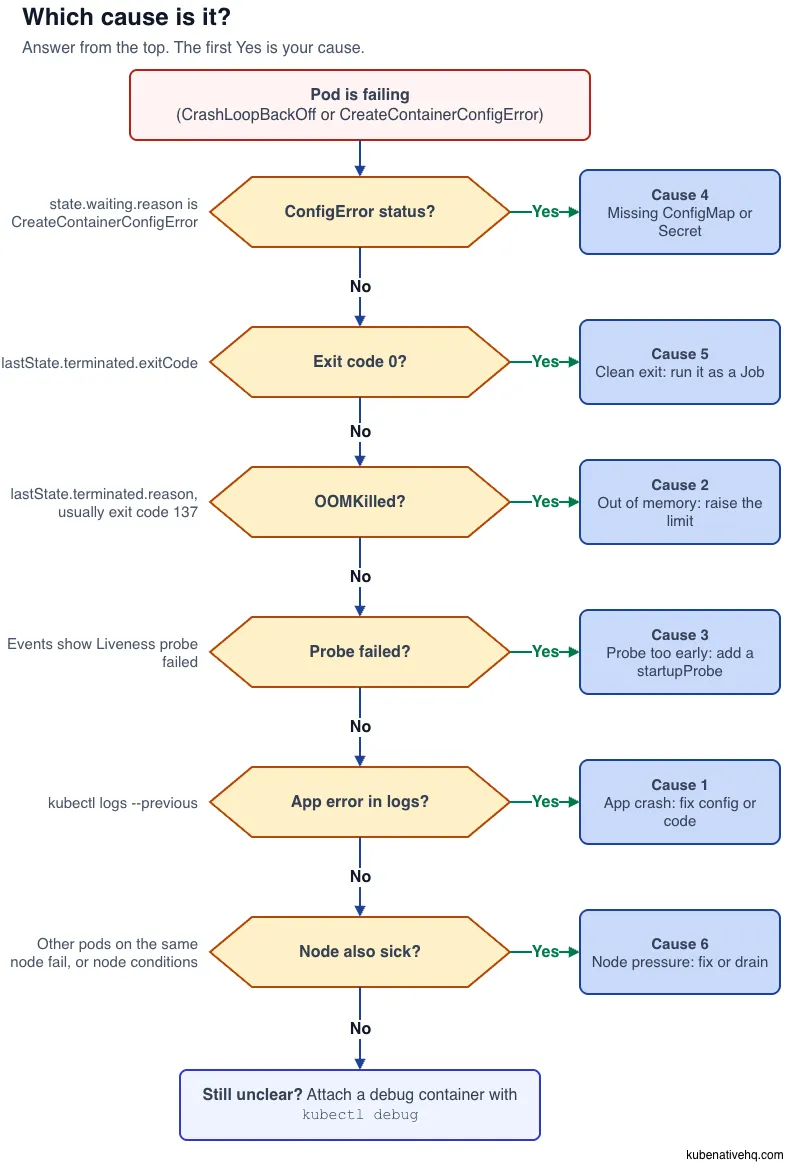
To find the cause, read the events, then the previous logs, then the raw Pod status. The cause is usually one of six: an application error, OOMKilled, a probe that fails too early, a missing ConfigMap or Secret, a clean exit with restartPolicy Always, or node pressure.
Do not delete the Pod, because the new Pod fails for the same reason. Start with the events, because the events often name the cause in one line.